Okta
You need: Okta admin access, and permission to create app integrations.
1. In AuthSec
Identity Providers → + Add provider → SAML 2.0, then pick the Okta preset. Set a Display Name and Provider Slug, and keep the tab open — you need the paste targets next.
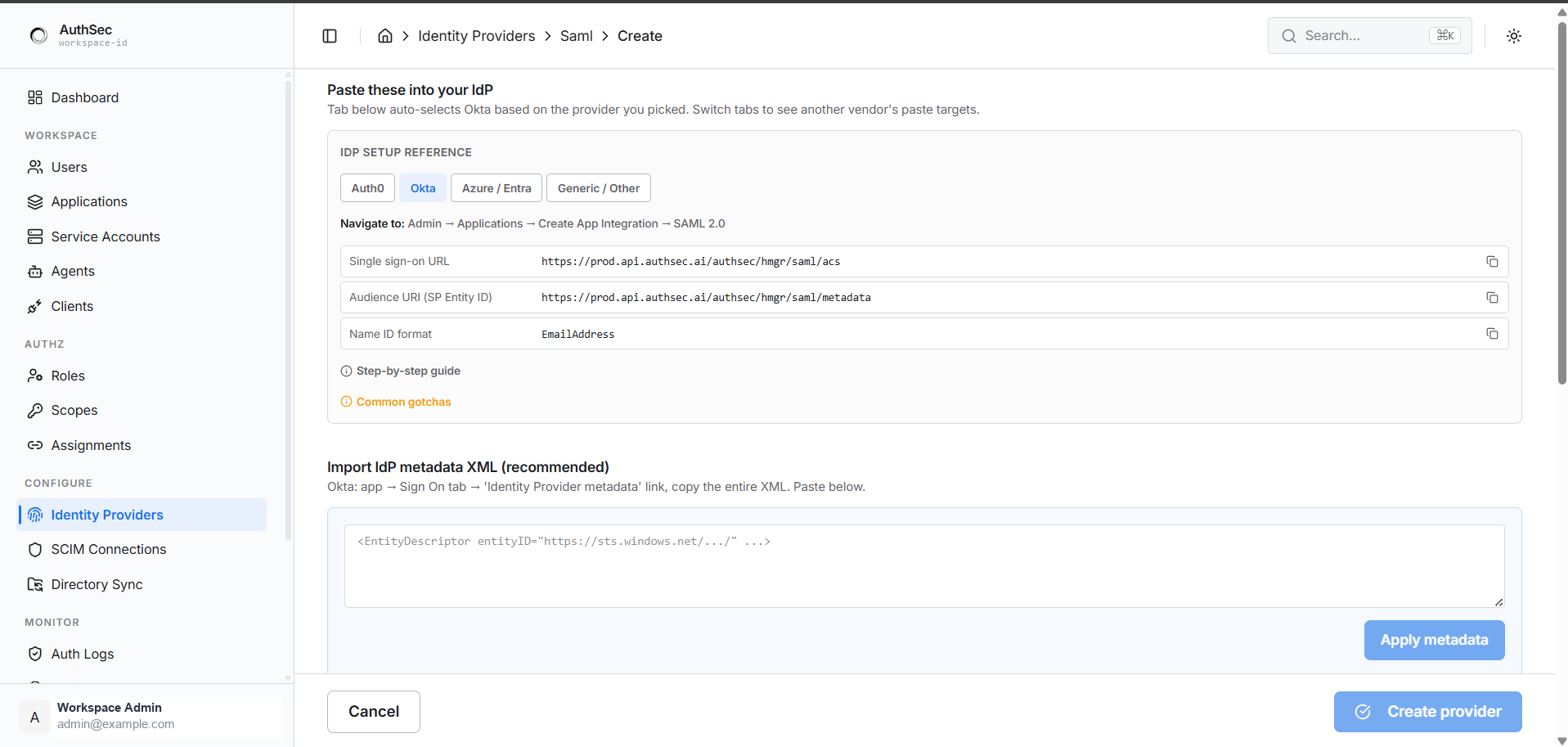
The IDP SETUP REFERENCE panel shows exactly what to copy, with a Step-by-step guide and Common gotchas expander beneath it.
2. In Okta
Navigate to Admin → Applications → Create App Integration → SAML 2.0.
| Okta field | Paste from AuthSec |
|---|---|
| Single sign-on URL | Single sign-on URL |
| Audience URI (SP Entity ID) | Audience URI |
| Name ID format | EmailAddress |
Finish the wizard, then open the app's Sign On tab → View SAML setup instructions. That page has everything you need for the next step.
3. Back in AuthSec
The fastest route: on the Okta setup instructions page, copy the Identity Provider metadata XML, paste it into Import IdP metadata XML, and click Apply metadata.
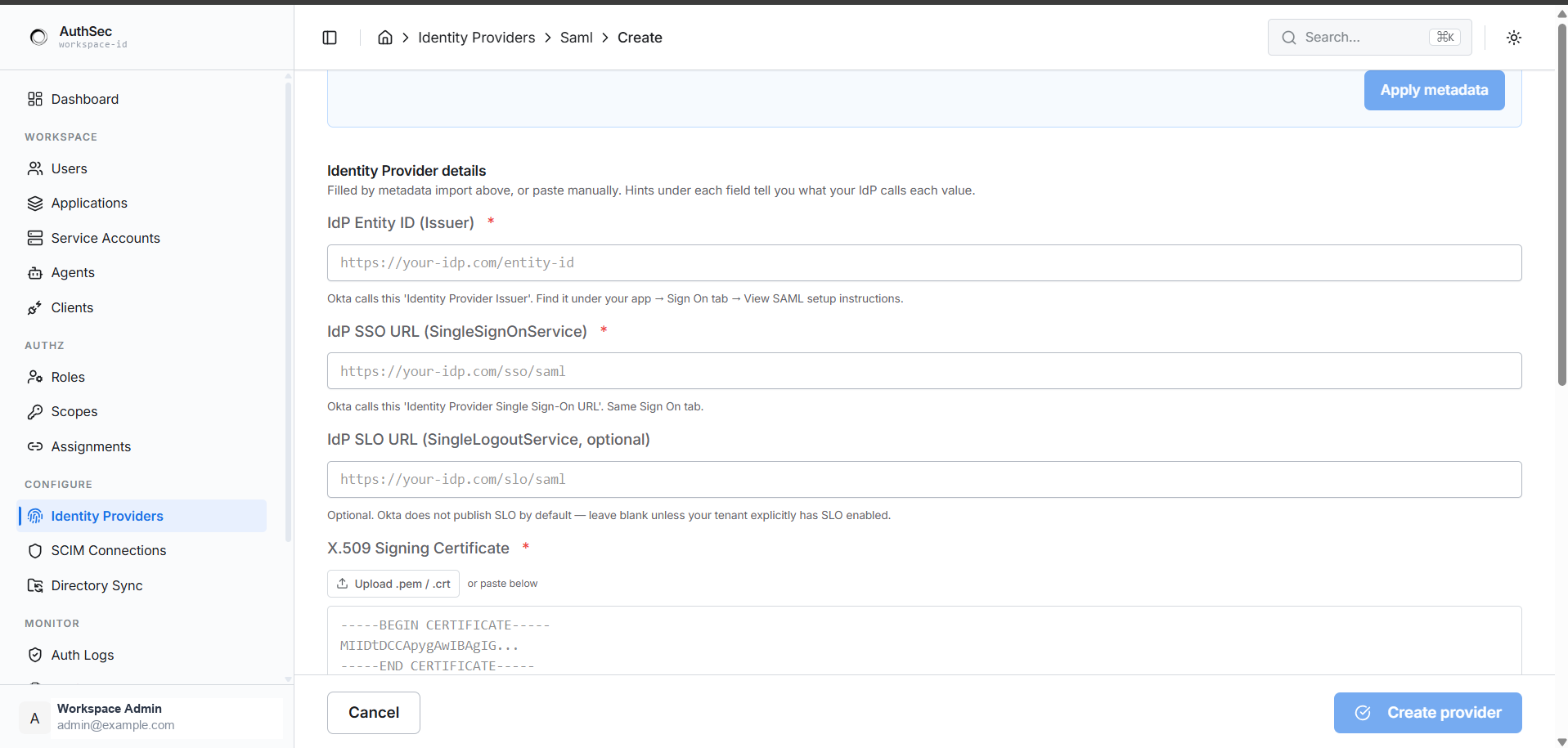
To fill them by hand instead:
| AuthSec field | Okta calls it |
|---|---|
| IdP Entity ID (Issuer) | Identity Provider Issuer |
| IdP SSO URL | Identity Provider Single Sign-On URL |
| X.509 Signing Certificate | X.509 Certificate |
| IdP SLO URL | Only if Single Logout is enabled on your tenant |
4. Certificate and attributes
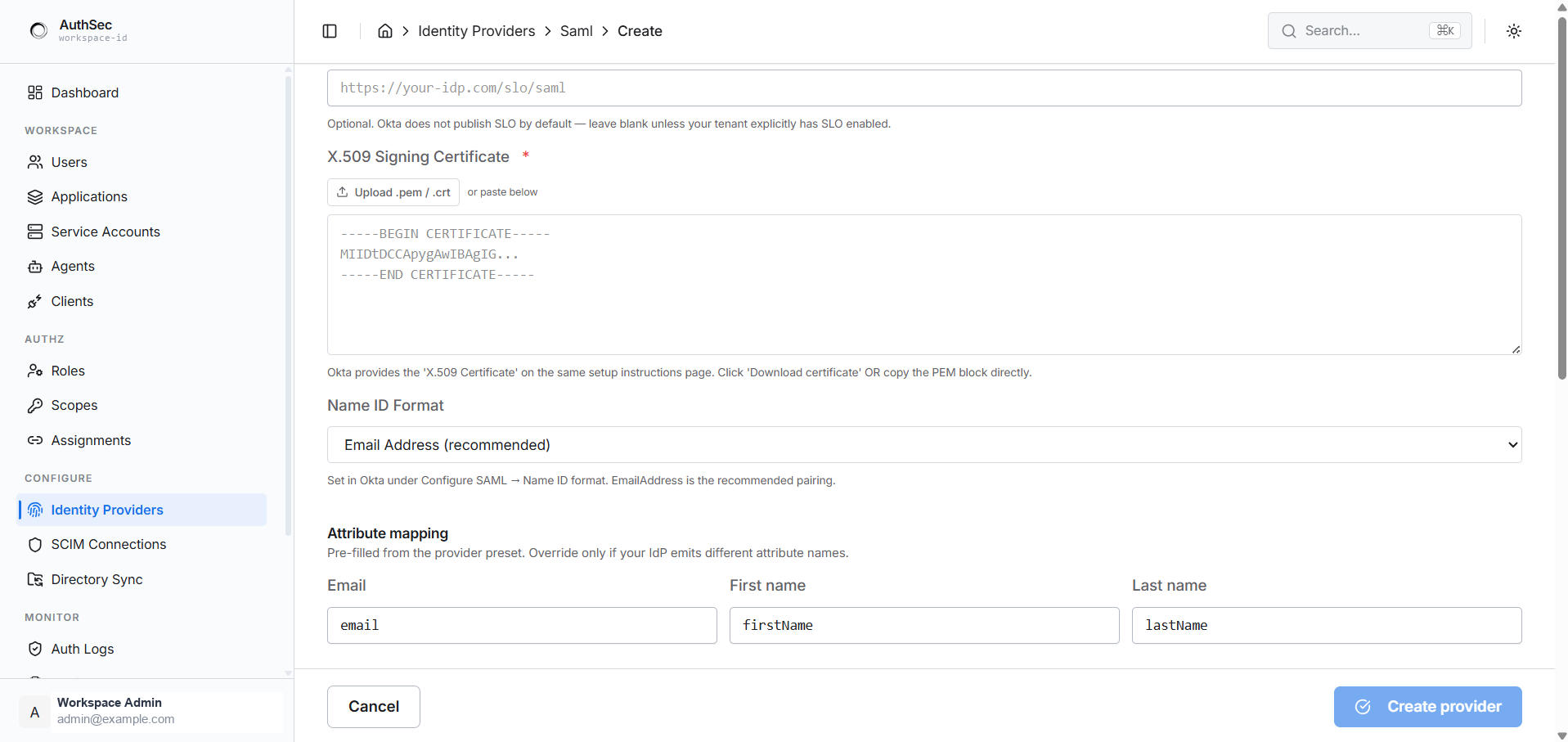
Okta offers the certificate two ways — the Sign On tab's Download certificate button, or the PEM block on the setup instructions page. Either works; paste the whole block including -----BEGIN CERTIFICATE----- and -----END CERTIFICATE-----.
Set Name ID Format to Email Address, matching what you configured in Okta. Okta returns attributes by default, so the preset's email / firstName / lastName mapping usually needs no change.
Click Create provider.
Gotchas
- Assign people to the app. Okta will not let anyone sign in until the app has users or groups assigned under its Assignments tab. This is the most common "it just doesn't work" cause.
- Certificates expire. Okta signing certificates are multi-year but finite — re-import the metadata when you rotate.
- Name ID and attribute mapping must agree. If Okta sends a username-style Name ID while AuthSec expects an email, sign-in succeeds but the user record is wrong.