Sign in and create a workspace
~2 minutes. End state: AuthSec account, workspace, and MFA configured.
Step 1 — Enter your email
Go to app.authsec.ai. Enter your work email and click Continue:
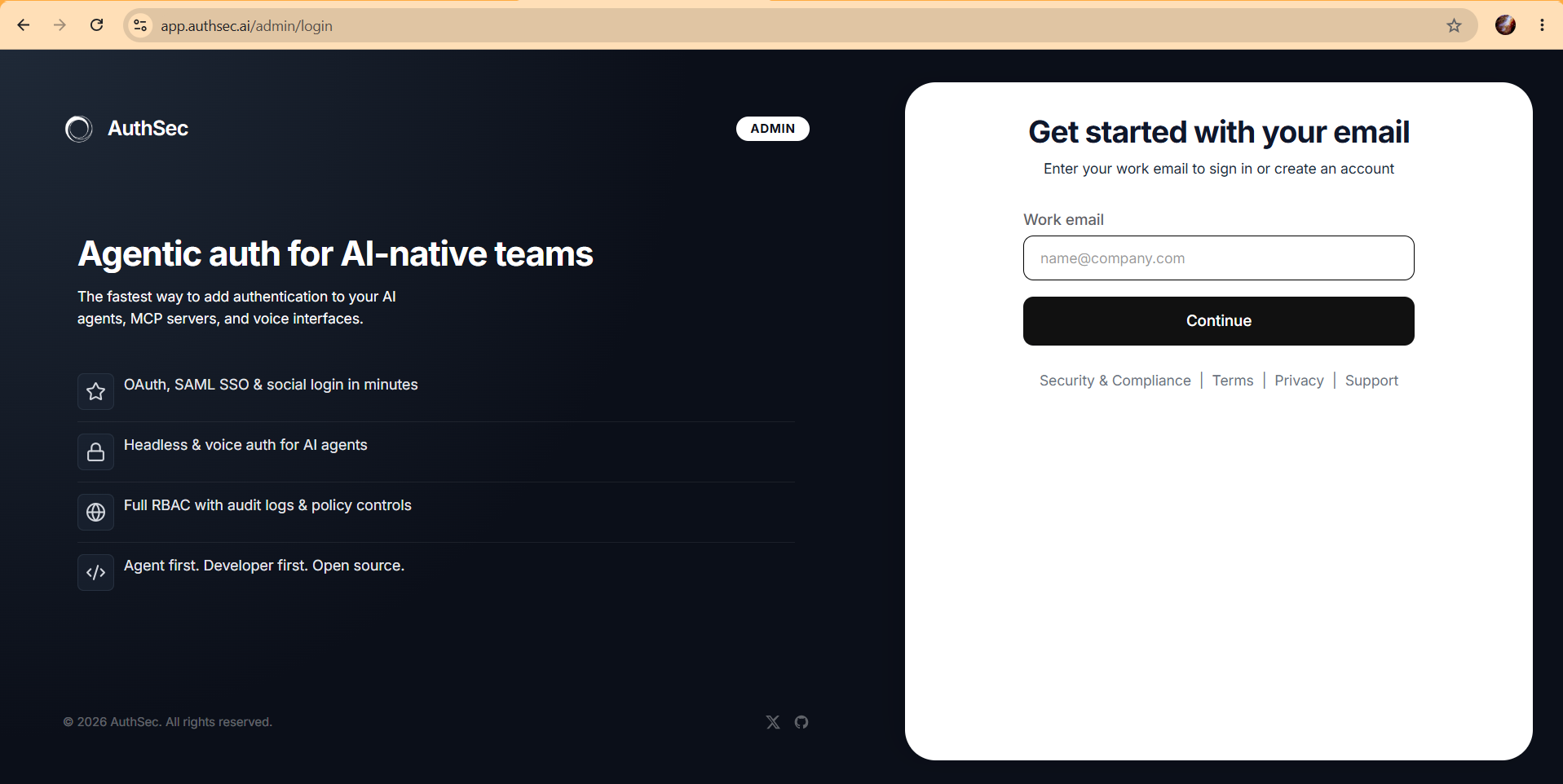
Existing accounts skip straight to the password screen (step 3). New accounts enter the signup flow below.
Step 2 — Create your workspace (new accounts only)
Fill in the three fields:
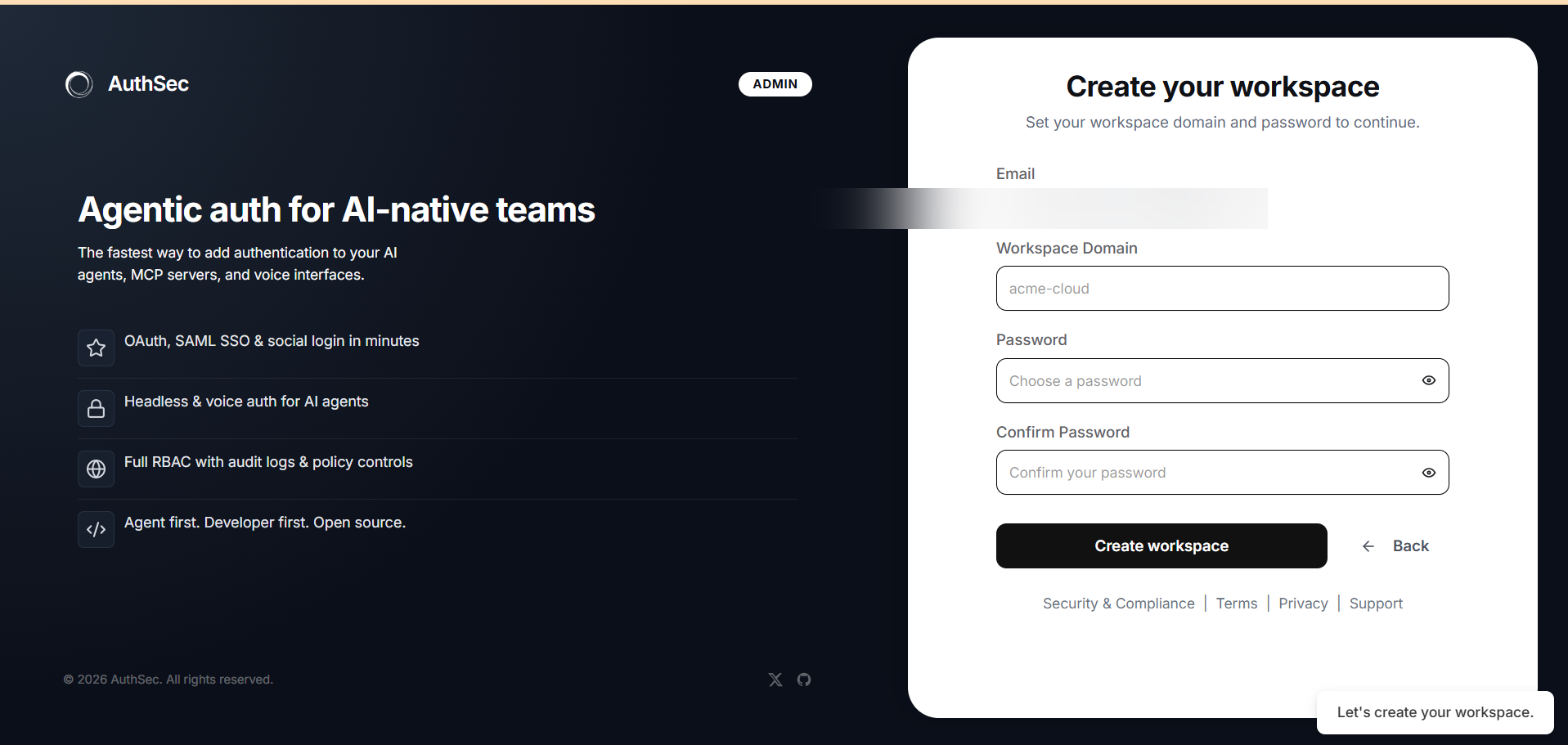
- Workspace Domain — a short slug (lowercase, no spaces) that
identifies your workspace, e.g.
acme-cloud. It must be unique across AuthSec. - Password — pick something strong; you'll add MFA in a moment.
- Confirm Password
Click Create workspace.
AuthSec sends a 6-digit verification code to your email:
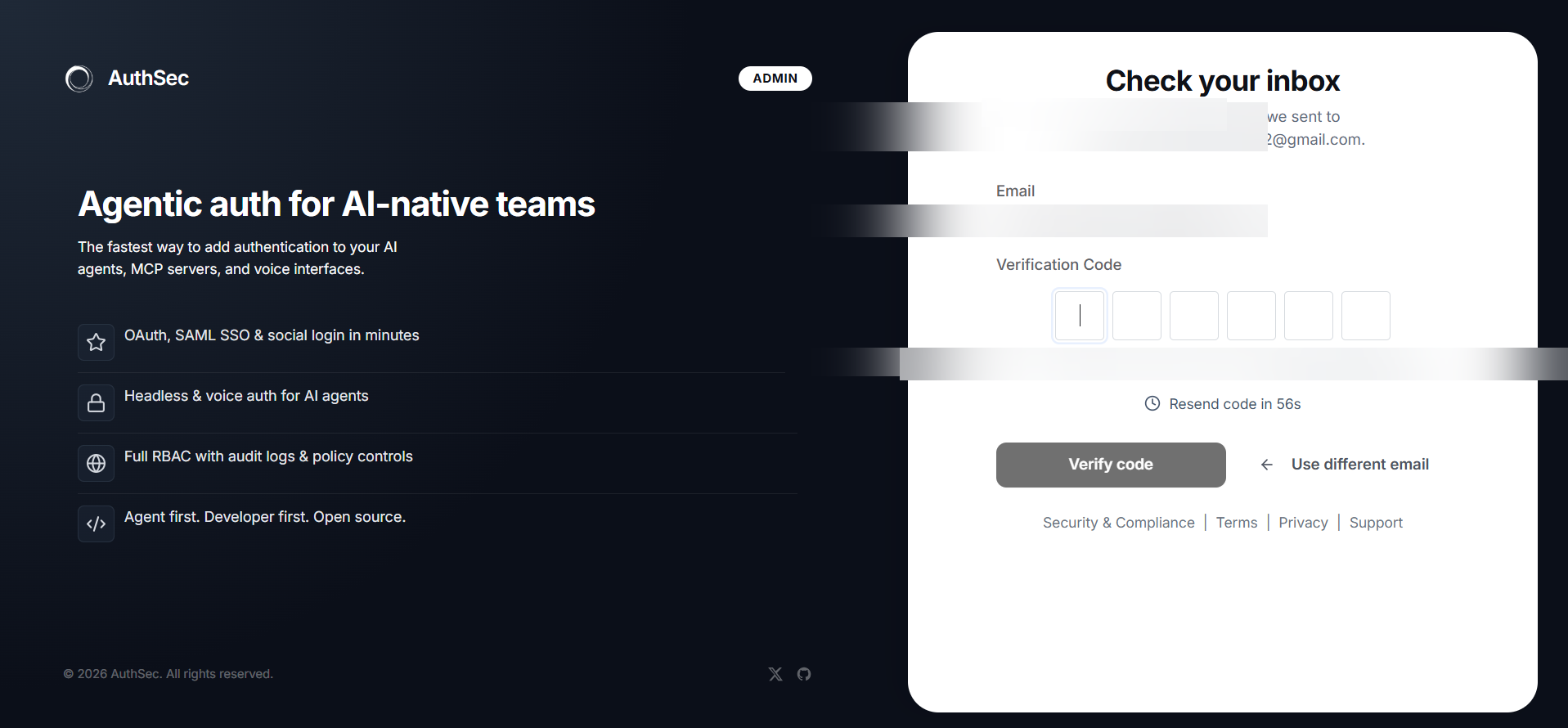
Enter the code and click Verify code. If it doesn't arrive, check spam or click Resend code.
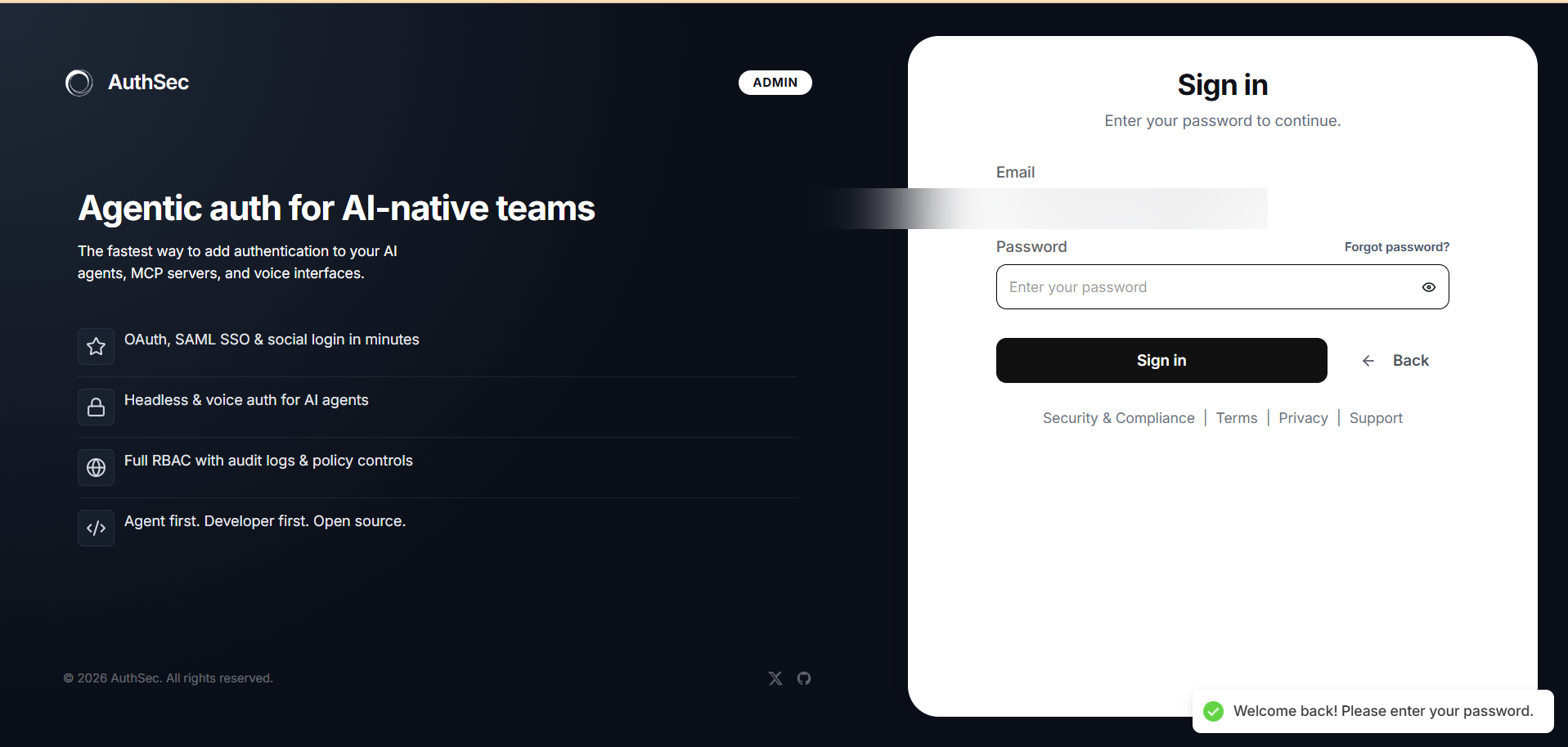
Step 3 — Sign in
Enter your password and click Sign in:
Step 4 — Secure your account (MFA)
On first sign-in, AuthSec prompts for multi-factor authentication. Two methods are available:
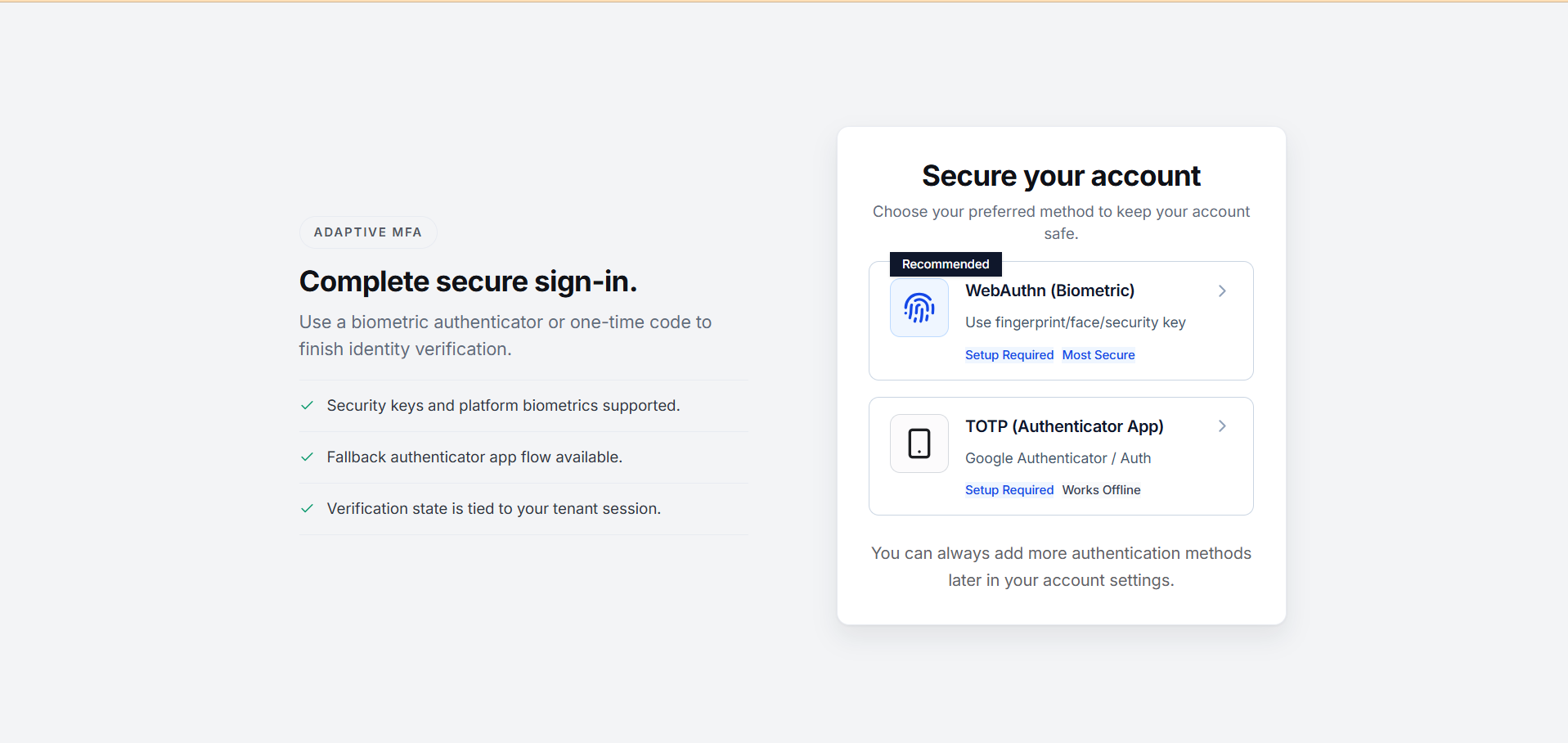
Option A — WebAuthn (Biometric) — recommended
Use your device's fingerprint reader, face recognition, or a hardware security key. Click the WebAuthn (Biometric) card and follow your browser's prompt — no app needed, nothing to type.
Option B — Authenticator app (TOTP)
Click the TOTP (Authenticator App) card. AuthSec shows a QR code:
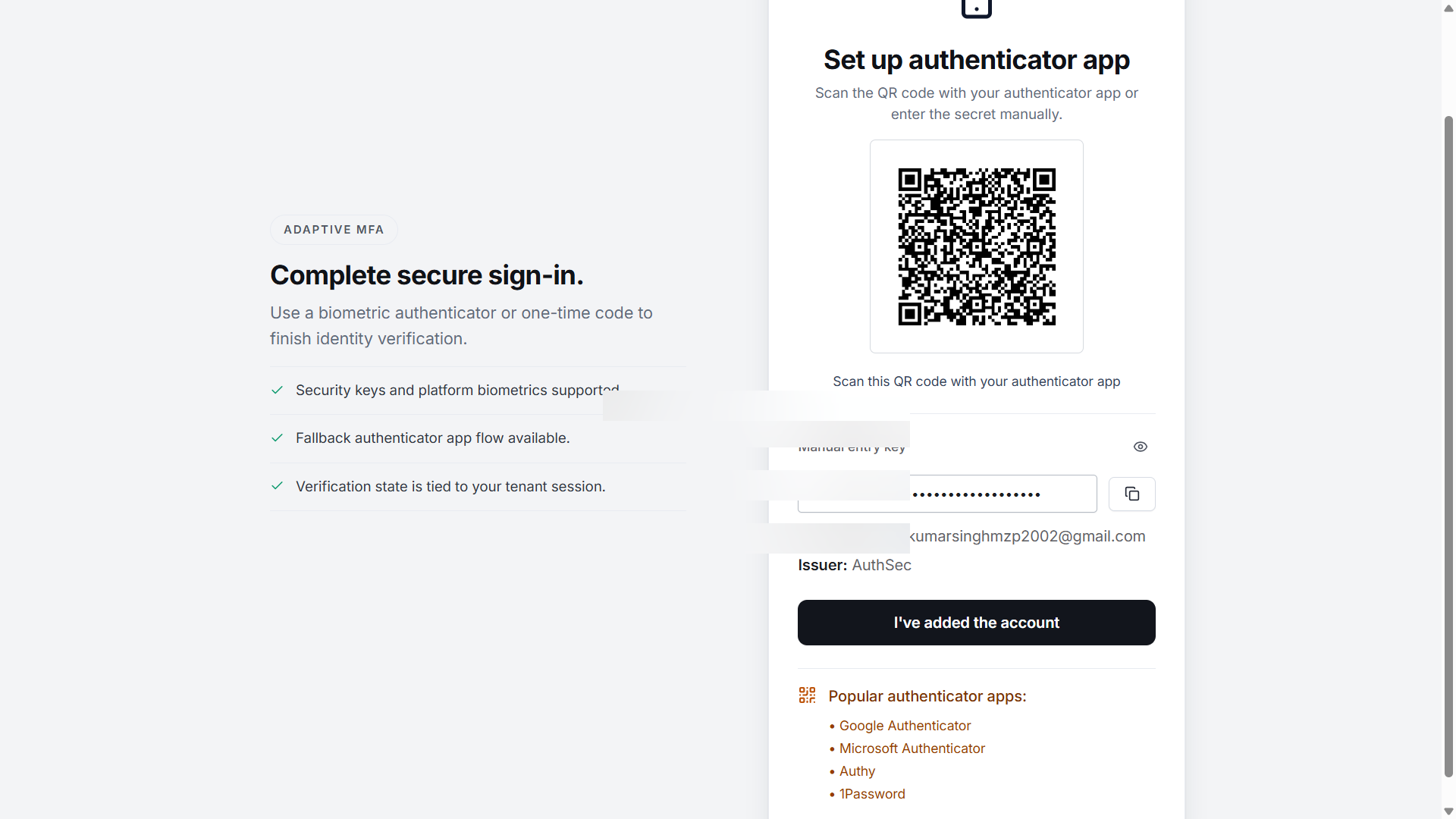
- Open your authenticator app (Google Authenticator, Microsoft Authenticator, Authy, 1Password — any TOTP app works).
- Scan the QR code, or tap Manual entry key and paste the secret.
- Click I've added the account.
AuthSec asks you to verify the setup — enter the 6-digit code from your app:
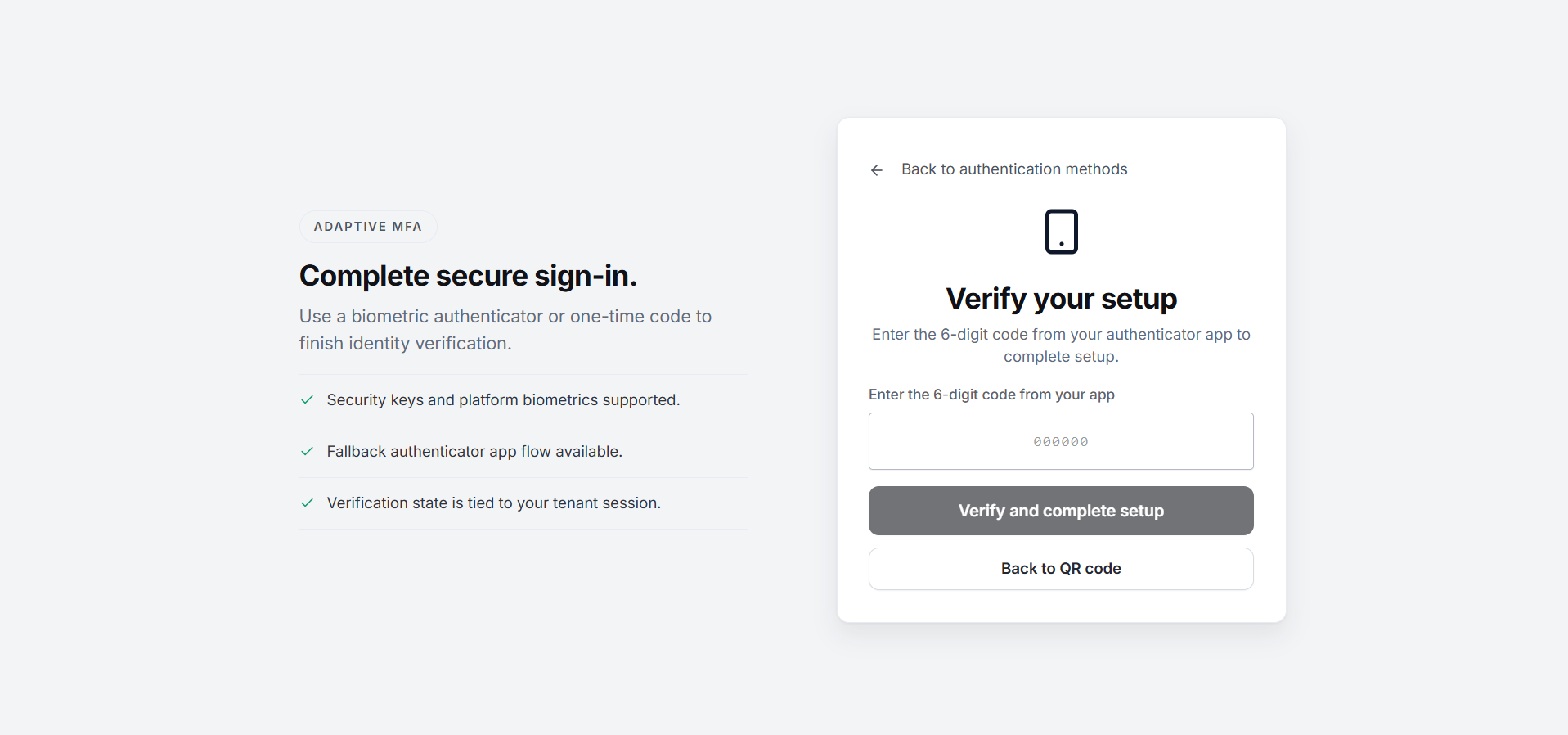
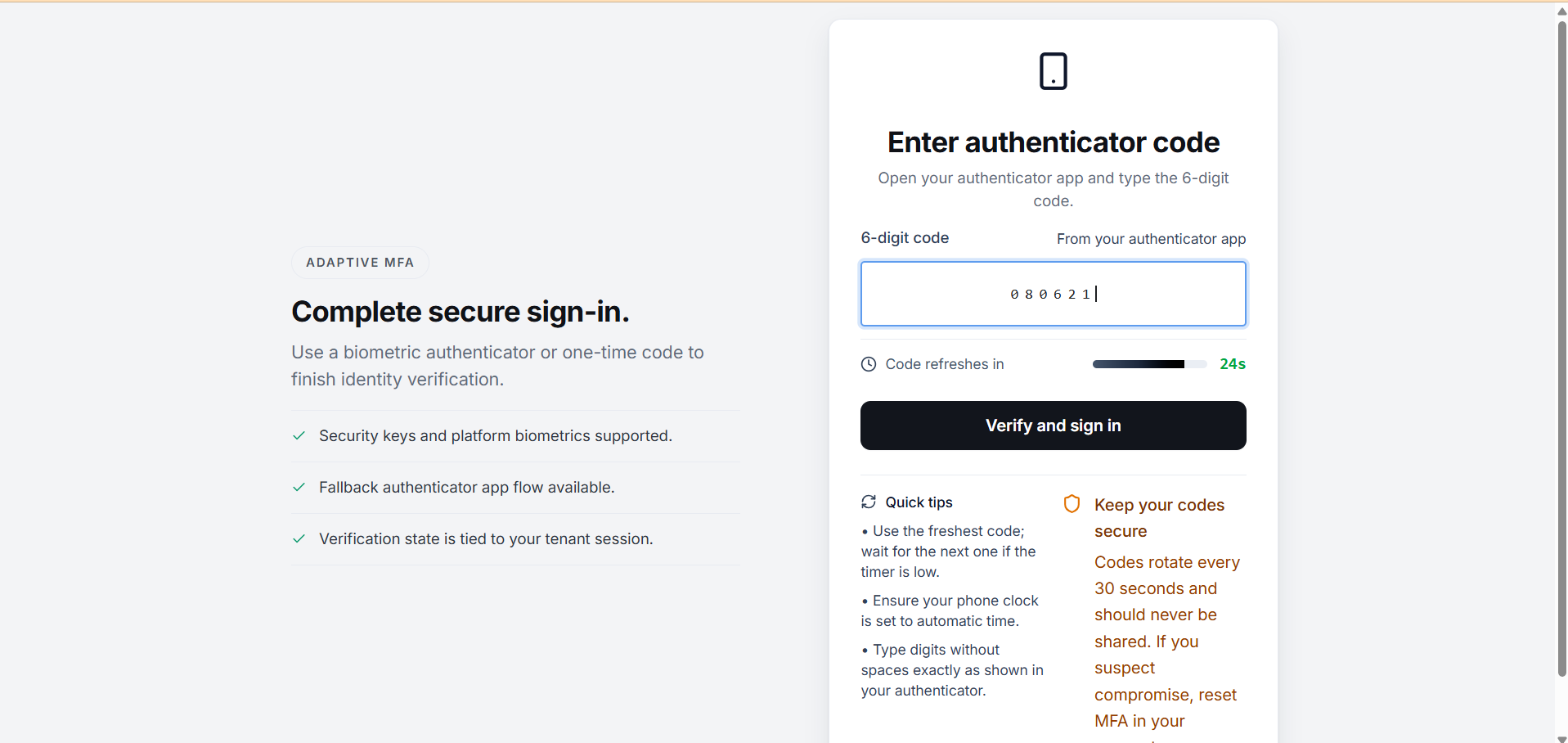
On subsequent logins, after entering your password you'll see this screen — enter the current code from your app:
Add a second method any time from account settings. Both configured means you're never locked out if one device is unavailable.
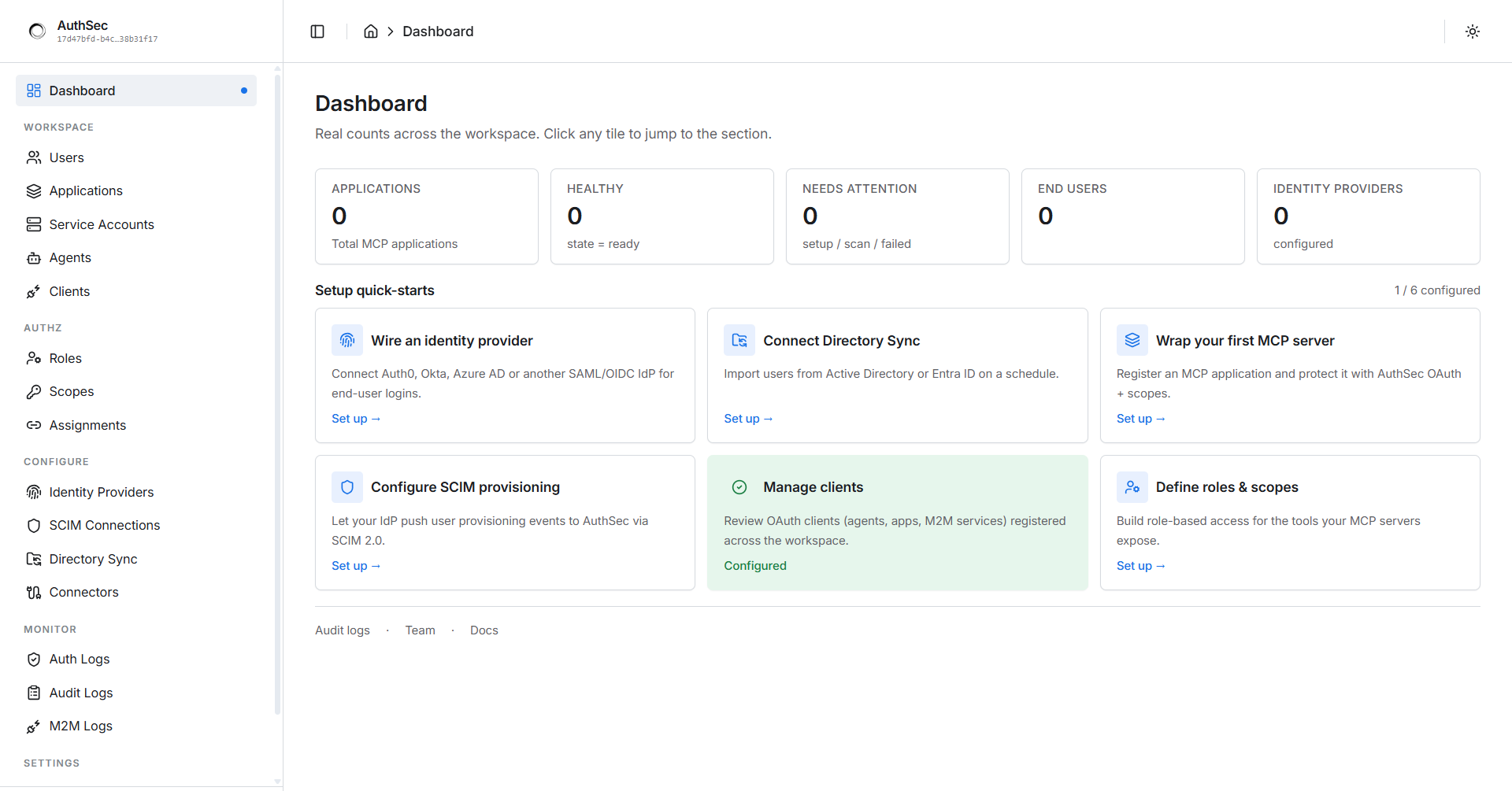
You're in
After MFA you land on the workspace dashboard: