Tool inventory and discovery
AuthSec can't protect tools it doesn't know about. This page shows how your server's tool list gets into the dashboard — automatically via the SDK manifest or a scan — and what the Tools tab shows you.
- Registration + SDK setup complete
- Your server running with
AUTHSEC_PUBLISH_MANIFEST=true
This is the operator-facing page. For the developer mental model — what a tool manifest actually is and what's in each entry — start there.
What the Tools tab shows
Every tool AuthSec knows about your server, one row per tool:
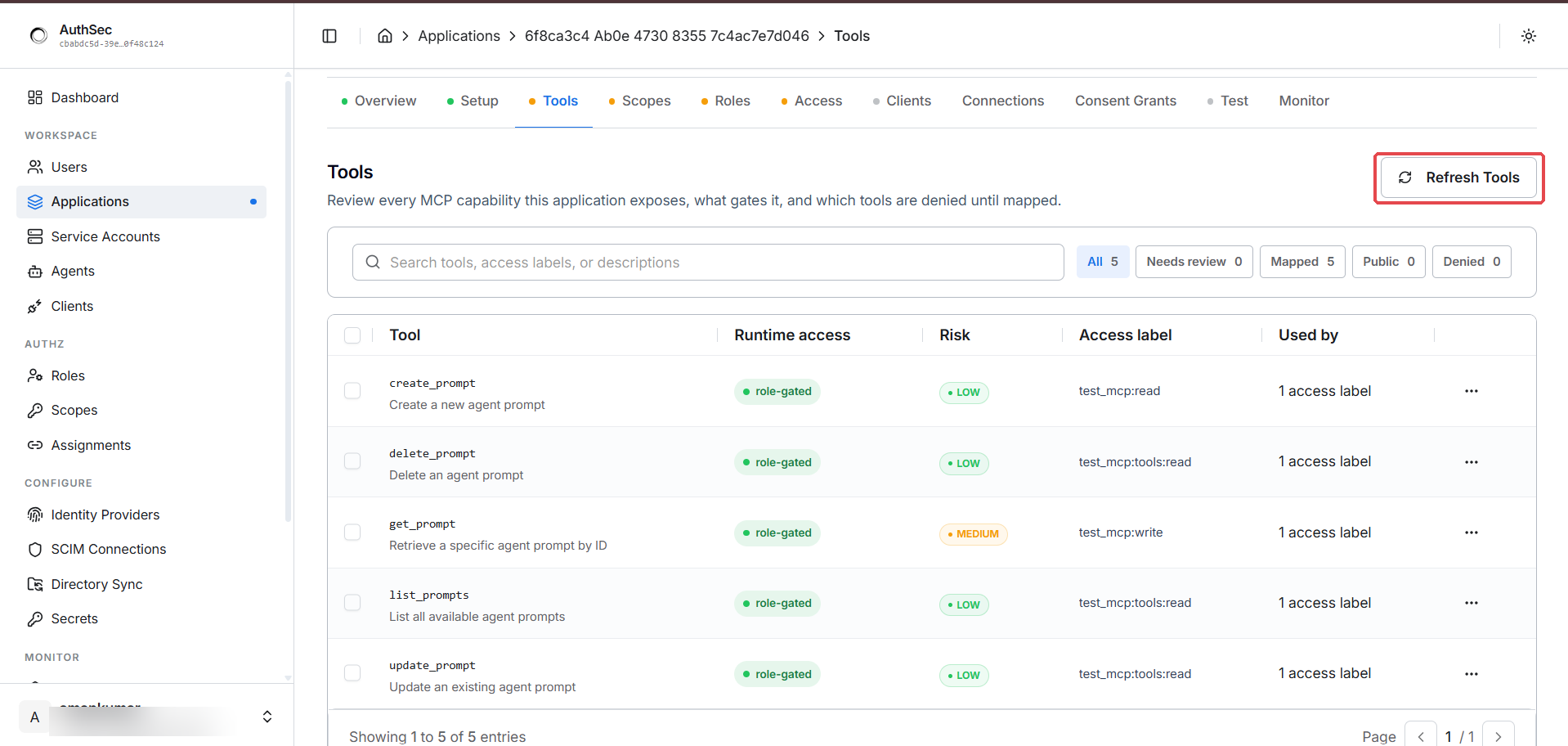
| Column | What it tells you |
|---|---|
| Tool | The tool's name and description, exactly as your server declares them |
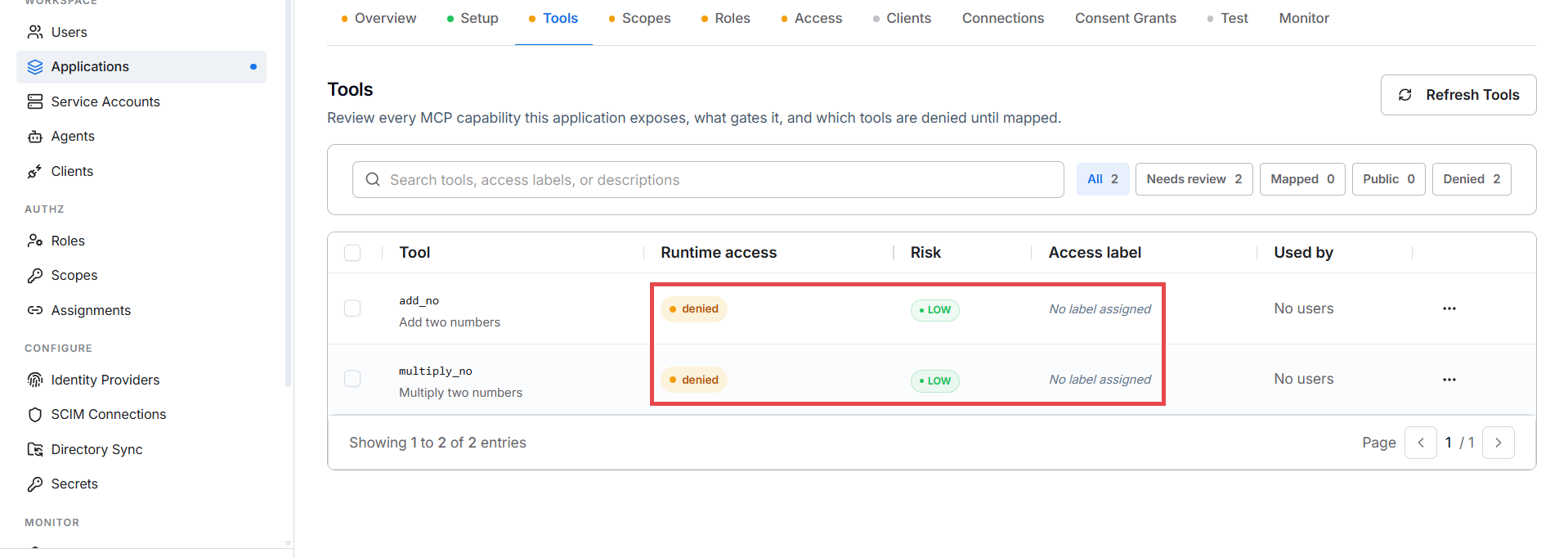
| Runtime access | What happens when someone calls it right now — denied (unmapped, fail-closed), role-gated (requires a scope), or public (no auth) |
| Risk | Auto-assessed low / medium / high, based on what the tool appears to do — high-risk tools are worth reviewing first |
| Access label | The scope that gates the tool, or "No label assigned" if it's still denied |
| Used by | How many access labels reference the tool |
The filter chips (All / Needs review / Mapped / Public / Denied) carry live counts — Denied is the one to drain before launch, and the search box matches tool names, access labels, and descriptions.
Freshly imported tools start denied with "No label assigned" — the
fail-closed default. Nothing is callable until an operator maps it:
The Refresh Tools button
The ⟳ Refresh Tools button (highlighted top-right above) re-runs
discovery on demand: AuthSec calls your live server's tools/list and
re-imports the result — the same operation as
POST /authsec/resource-servers/:id/rescan.
Click it whenever the dashboard looks out of sync with your code:
- you added a new
@mcp.tool()and rebooted, but it isn't listed yet - you renamed a tool or changed its
input_schema - you removed a tool and want the inventory to reflect it
What a refresh does — and deliberately does not — change:
- New tools appear immediately,
denieduntil you map them - Unchanged tools (same name) keep their scope mappings — admin overrides always survive a refresh
- Removed tools stay listed but marked stale, preserving the audit trail; renamed tools show up as brand-new (and unmapped)
- Each successful refresh bumps the internal
scan_generationcounter
It never touches roles, grants, or launch state, so it's safe to click any
time. If it fails, the usual cause is your server requiring auth on
tools/list — see troubleshooting and prefer the SDK
manifest path below.
How tools get discovered
Three ways a tool can enter the inventory:
| Source | How | When to use |
|---|---|---|
sdk_manifest | The SDK publishes your tool list on startup (PUT /sdk-manifest) | The recommended path. The SDK knows the inventory authoritatively. |
mcp_scan | AuthSec calls your server's tools/list (POST /rescan) | When the SDK isn't publishing, or to re-sync on demand. |
manual | Admin-created via UI/API | Escape hatch for tools that don't appear in tools/list. |
The SDK manifest (Python)
With AUTHSEC_PUBLISH_MANIFEST=true, the SDK publishes your tool list at
startup. You tell it what the tools are via cfg.tool_inventory_provider —
a function returning one ManifestTool per tool:
from authsec_sdk import ManifestTool

def my_tools():
    return [
        ManifestTool(
            name="add_no",
            description="Add two numbers",
            input_schema={
                "type": "object",
                "properties": {"a": {"type": "number"}, "b": {"type": "number"}},
                "required": ["a", "b"],
            },
        ),
    ]

cfg = from_env()                        # AUTHSEC_PUBLISH_MANIFEST=true in .env
cfg.tool_inventory_provider = my_tools
mount_mcp(app, "/mcp", mcp, cfg)
# startup log: "authsec manifest published for resource_server_id=..."
The provider is required when you pass a FastMCP instance to
mount_mcp — without it the publish fails non-fatally (the boot log
shows authsec manifest publish failed (non-fatal): ... and no tools
appear). Alternative: pass rpc_handler= to mount_mcp (an in-process
JSON-RPC callable) and the SDK enumerates tools by running a synthetic MCP
handshake against it instead.
Go equivalent: PublishManifest: true + ToolInventoryProvider
(Go SDK).
The scan
This is what the Refresh Tools button
triggers: AuthSec connects to your registered Resource URI and issues a
real tools/list request, then upserts whatever comes back. Use it when
the SDK isn't publishing a manifest, or any time you want to re-sync on
demand.
Re-scanning after schema changes
Changed your tool surface? Either click Refresh Tools or just reboot with manifest publishing on — the same preservation rules apply either way: mappings survive for unchanged names, removed tools go stale, renamed tools arrive as new and unmapped.
Troubleshooting
| Symptom | Cause | Fix |
|---|---|---|
| Scan returns 401 | Your server requires auth on tools/list | Use the SDK manifest path (tool_inventory_provider above) — no network scan needed |
| Scan times out | Slow tools/list (many tools, big schemas) | Use the SDK manifest path; check last_scan_error for which timeout fired |
| Scan returns a non-MCP response | Your /mcp route serves HTML or wrong JSON | Check the registered URL actually serves JSON-RPC |
| Tool count looks wrong | Stale tools from older scans linger | They're filtered from the activation preview; remove per-tool from the Tools tab |
| Tools don't appear after boot | Manifest publish failed — often tool_inventory_provider not set (required with FastMCP) | Look for authsec manifest publish failed (non-fatal) in the boot log; set the provider; verify introspection credentials |