Signs users in with a Google account — Workspace or consumer Gmail. Setup takes one OAuth client in Google Cloud Console.
You need: a Google Cloud project, and permission to create credentials in it.
In AuthSec
Identity Providers → + Add provider → OIDC / OAuth 2.0 → Google. Copy the Callback URL shown in the wizard and keep the tab open.
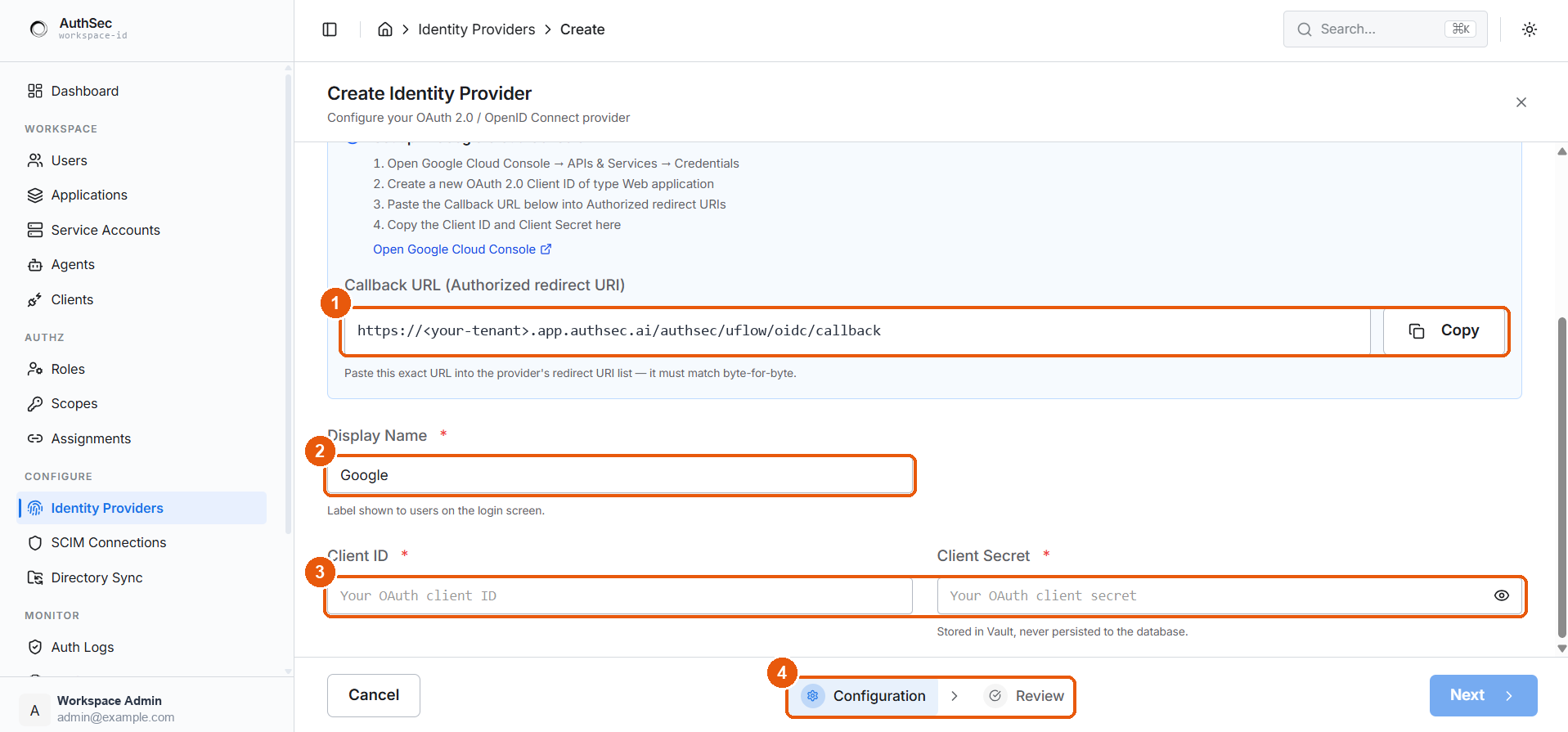
① Callback URL with Copy · ② Display Name · ③ Client ID and Secret · ④ wizard progress
In Google Cloud Console
- Open APIs & Services → Credentials
- Create Credentials → OAuth client ID
- Application type: Web application
- Under Authorized redirect URIs, click Add URI and paste the Callback URL
- Create — Google shows the Client ID and Client Secret in a dialog
- Copy both back into AuthSec
The wizard links straight to the console with Open Google Cloud Console.
The consent screen
Google will not issue credentials until the project has an OAuth consent screen. If you have not configured one, it prompts you first.
| Setting | What to pick |
|---|---|
| User type | Internal for Workspace-only sign-in; External for any Google account |
| Scopes | openid, profile, email — the template requests these |
| Publishing status | In production, or add every tester under Test users |
An External app left in Testing only admits accounts listed under Test users. Either add the user there, or publish the app. Internal apps skip this entirely — prefer Internal if everyone signing in has a Workspace account on the same domain.
Fields in AuthSec
| Field | Value |
|---|---|
| Display Name | What the login button says — usually "Google" |
| Client ID | Ends in .apps.googleusercontent.com |
| Client Secret | Starts with GOCSPX- |
Gotchas
- Redirect URI changes take a moment. Google can cache the old set for a few minutes after you save.
- Internal vs External cannot be switched freely once the app is published — pick deliberately.
- Deleting the OAuth client breaks sign-in immediately. Rotate the secret instead if you only need new credentials.